How site synchronization works
NexaWP Manager uses a secure, API-driven architecture to communicate with your WordPress sites. This documentation explains the complete synchronization process from initial setup to ongoing automated updates.
Initial connection and activation
When you add a new WordPress site to NexaWP Manager, the system performs a comprehensive verification and synchronization process. First, the platform validates that your WordPress site’s REST API is accessible by checking the /wp-json endpoint. Once confirmed, it authenticates using the unique 32-character API key generated by the NexaWP Connector plugin installed on your WordPress site. This secure handshake occurs via the /wp-json/nexawp/v1/verify endpoint, ensuring that only authorized connections are established.
After successful authentication, NexaWP Manager retrieves your site’s core information including the WordPress version, site name, description, timezone, language settings, and system configuration. The platform then initiates a full synchronization of all site components: plugins, themes, WordPress core status, and user accounts. This initial sync uses an intelligent retry mechanism with progressive timeouts (45s, 60s, 90s) to handle sites with slower connections or complex configurations, ensuring reliable data collection even under challenging network conditions.
Ongoing synchronization via cron jobs
To keep your dashboard data current without requiring manual intervention, NexaWP Manager employs automated background synchronization through scheduled cron jobs. The wordpress:sync-sites command runs periodically and processes sites in configurable batches (default: 25 sites per execution) to optimize server resources. Sites are prioritized based on their last synchronization timestamp, with those not checked within the past hour being updated first.
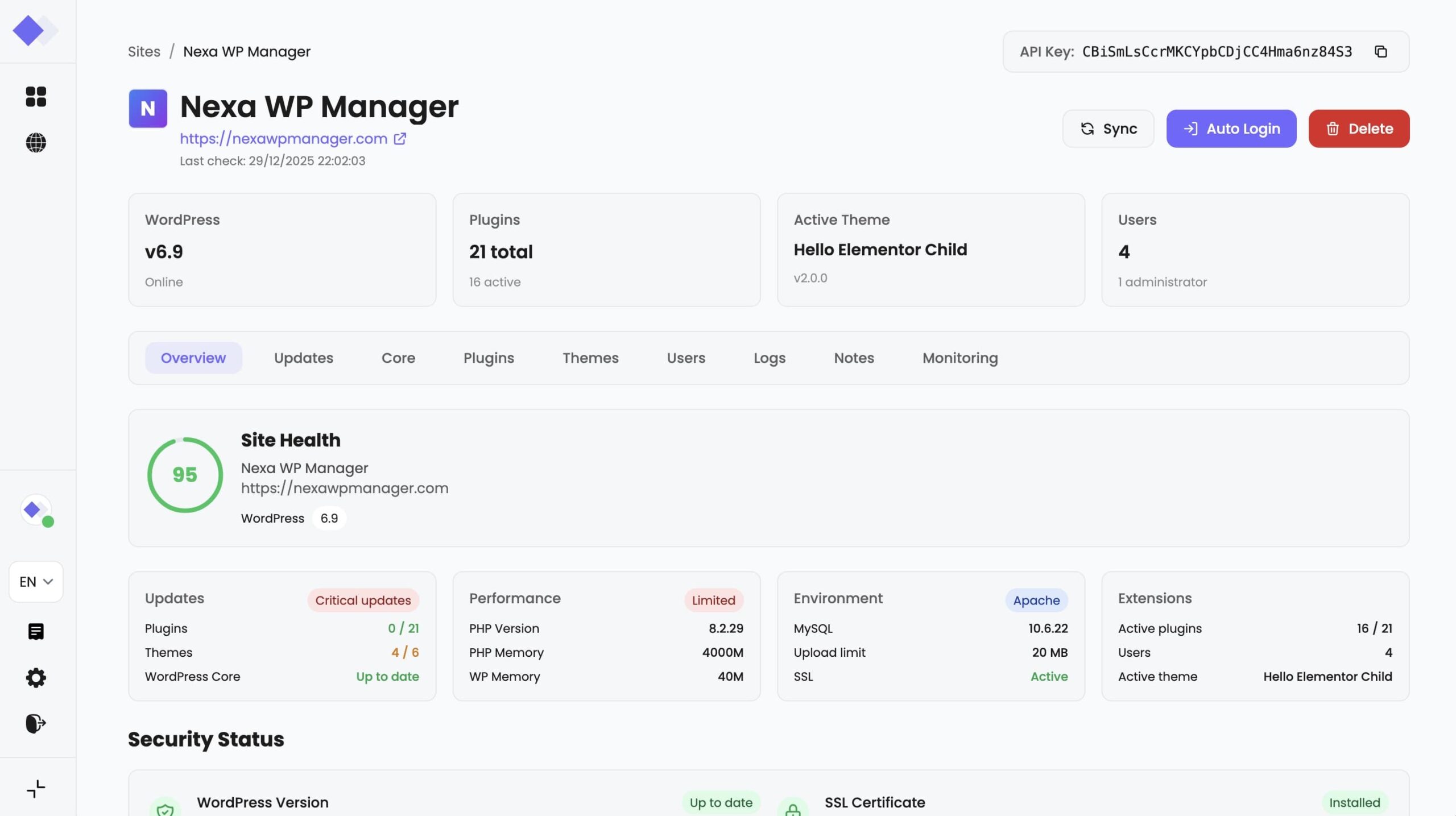
During each automated sync cycle, the system refreshes four key data categories: WordPress core version and update availability, installed plugins with their activation status and pending updates, themes including the active theme and available updates, and user accounts with their roles and capabilities. Each synchronization attempt includes individual error handling, allowing the process to continue even if one component encounters issues. The site’s status is updated to reflect any errors, and the last_checked_at timestamp is recorded for scheduling future syncs.
Data flow and API communication
All communication between NexaWP Manager and your WordPress sites occurs through secure REST API endpoints provided by the NexaWP Connector plugin. Each request includes a Bearer token authentication header containing your site’s unique API key, ensuring that only your NexaWP Manager account can access and modify your site data. The connector plugin exposes dedicated endpoints for each operation: /nexawp/v1/plugins for plugin management, /nexawp/v1/themes for theme operations, /nexawp/v1/core/status for WordPress core information, and /nexawp/v1/users for user synchronization.
When data is retrieved from your WordPress site, NexaWP Manager processes and stores it in its local database, creating a real-time mirror of your site’s configuration. This architecture enables rapid dashboard loading and historical tracking without repeatedly querying your WordPress sites. Updates made through the dashboard (such as activating plugins or updating themes) are immediately pushed to your WordPress site via the corresponding API endpoints, with the local database updated upon successful confirmation from WordPress.
Security and protected operations
NexaWP Manager implements multiple security layers to protect your WordPress sites. The NexaWP Connector plugin itself is marked as a protected component and cannot be deactivated or deleted through the management interface, ensuring continuous connectivity.
All API communications use HTTPS encryption, and API keys are validated on every request. The system also includes safeguards against critical operations: the last administrator account cannot be deleted, and bulk operations include rate limiting (500ms delays between actions) to prevent overwhelming your WordPress server.
Additionally, the platform monitors for WordPress debug mode (WP_DEBUG) during site addition, alerting users when debug mode is enabled as it may expose sensitive information. Comprehensive logging tracks all synchronization activities, errors, and user actions, providing full audit trails for troubleshooting and security review.
Allgemeine Fragen
Sites are automatically synchronized by the cron system when they haven’t been checked within the past hour. You can also trigger a manual sync at any time from the site details page by clicking the “Sync” button.
NexaWP Manager syncs the following data: WordPress core version and update status, all installed plugins (including version, activation status, and available updates), all installed themes (including screenshots and update information), user accounts (usernames, emails, roles, and capabilities), and general site information (name, URL, timezone, language).
Yes. All communication uses HTTPS encryption, and every request is authenticated using your unique 32-character API key. The API key is generated locally on your WordPress site and is never transmitted in plain text. Only your NexaWP Manager account can access your site data.
Connection issues
Large WordPress sites with many plugins or users may take longer to sync initially. NexaWP Manager automatically retries with increasing timeouts (45s → 60s → 90s). If the issue persists, check your server’s PHP execution time limits and consider optimizing your WordPress installation.
This error indicates that NexaWP Manager cannot reach your WordPress site’s REST API. Common causes include: permalinks not configured (set to anything other than “Plain”), security plugins blocking REST API access, .htaccess rules restricting API endpoints, or hosting firewall blocking external API requests.
Ensure the NexaWP Connector plugin is installed and activated on your WordPress site. The plugin must be active to expose the required API endpoints. Also verify that your WordPress version is 5.0 or higher, as the plugin requires the modern REST API.
Synchronization and updates
Currently, updates are performed on a per-site basis. You can use bulk update features within each site to update all plugins or themes simultaneously for that specific site.
NexaWP Manager handles component failures gracefully. If plugin sync fails but theme sync succeeds, your dashboard will still show updated theme information. Failed components are logged, and you can retry the sync manually.
Your site may not have been synchronized since the changes were made. Click the “Sync” button on the site details page to fetch the latest data. Also check the “Last checked” timestamp to see when the last sync occurred.
Plugin and theme management
The NexaWP Connector is a protected plugin that cannot be deactivated or deleted through NexaWP Manager. This protection ensures continuous connectivity between your WordPress site and the management platform. To remove the plugin, you must do so directly from your WordPress admin panel.
Yes, for plugins available in the WordPress.org repository, NexaWP Manager can fetch available versions and perform rollbacks. This feature is not available for premium plugins or those not hosted on WordPress.org.
This can occur when the plugin’s update check returns incomplete data. Try syncing your site again, or check the plugin directly in your WordPress admin panel for accurate update information.
User management
NexaWP Manager prevents deletion of the last administrator account to ensure you never lose admin access to your WordPress site. Assign another user as administrator before deleting the current one.
No. For security reasons, user passwords are never transmitted or stored by NexaWP Manager. When creating users through the platform, passwords are sent directly to WordPress and are never retained.
Technical questions
NexaWP Manager requires WordPress 5.0 or higher, as it relies on the REST API infrastructure introduced in that version. For optimal performance, we recommend using the latest stable WordPress release.
Synchronization requests are lightweight and typically complete within seconds. The cron system includes delays between operations to prevent server overload. Normal site visitors will not notice any performance impact during sync operations.
From your NexaWP Manager dashboard, view your site’s status indicator. A green “Active” status confirms successful connectivity. You can also check the “Last checked” timestamp and review the activity logs for detailed sync history.
 English
  Français
  Deutsch