Plugin management
Update all plugins
You can update all plugins at once by clicking the “Update All Plugins” button. This action will check for any available updates for all installed plugins and apply them.
Please note that this process may take some time, and it is not recommended to navigate away from the page until the updates are complete. You will be notified once all updates have been successfully applied.
Activate or deactivate plugins
You have the ability to toggle the activation status of individual plugins using the switch next to each plugin’s name. Active plugins will have their switch turned on, while inactive plugins will have their switch turned off. Be cautious when deactivating essential plugins, as it may affect the functionality of your site.
Enable or disable auto-updates for plugins
For each plugin, you can enable or disable automatic updates by toggling the auto-update switch. When enabled, the plugin will automatically update to the latest version whenever an update is available. This feature helps to ensure that your plugins are always up-to-date, enhancing security and performance.
Update individual plugins
You can update individual plugins by clicking the “Update” button next to the plugin that has an available update. This process ensures that each plugin is updated one at a time, which can be useful if you want to monitor the update process closely or if you suspect a specific plugin is causing issues.
Delete plugin
Plugins can be deleted by clicking the delete icon next to the plugin name. This action will permanently remove the plugin from your site. Note that active plugins cannot be deleted until they are deactivated. Ensure that you really want to remove a plugin, as this action cannot be undone.
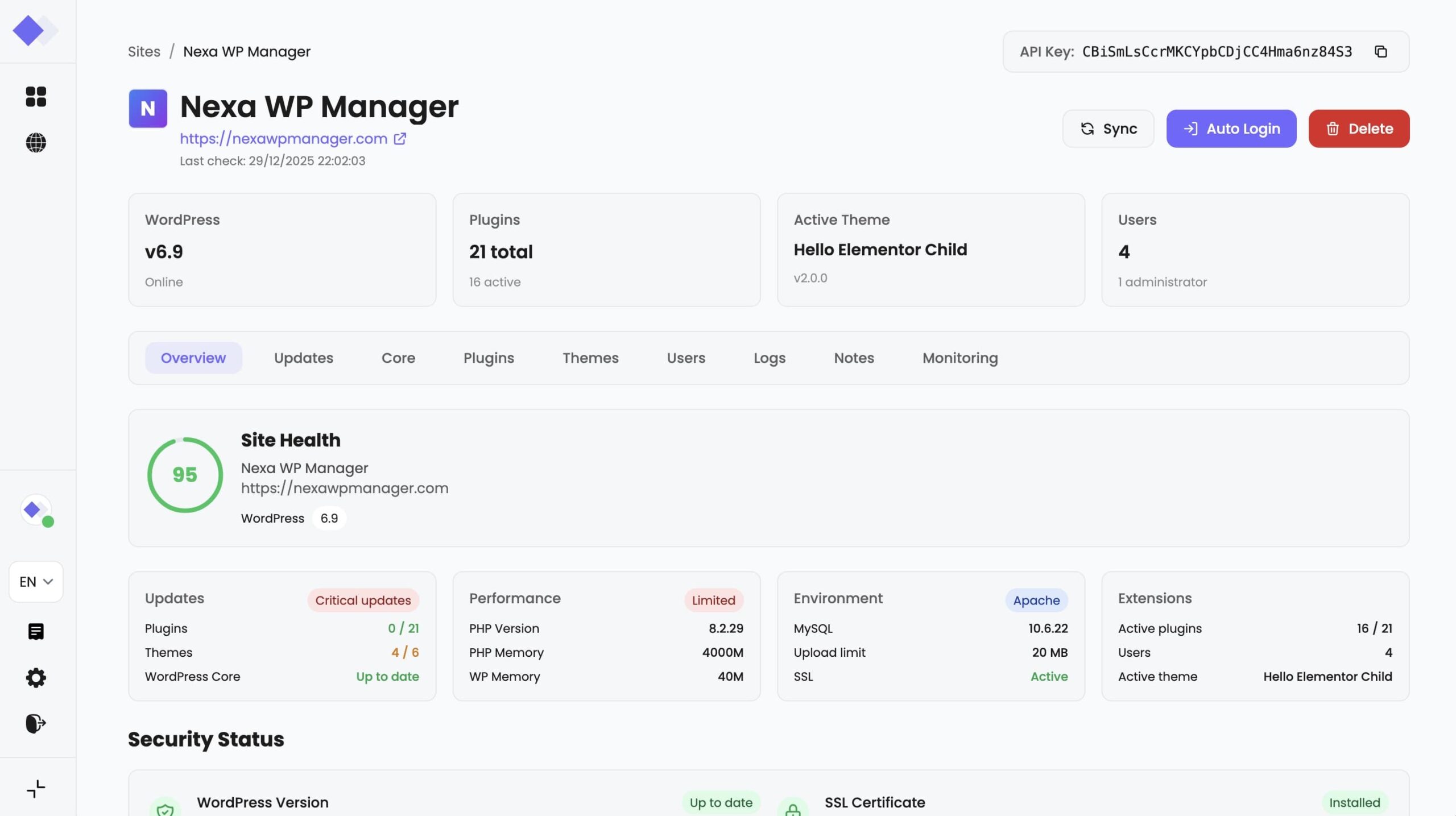
Theme management
Activate themes
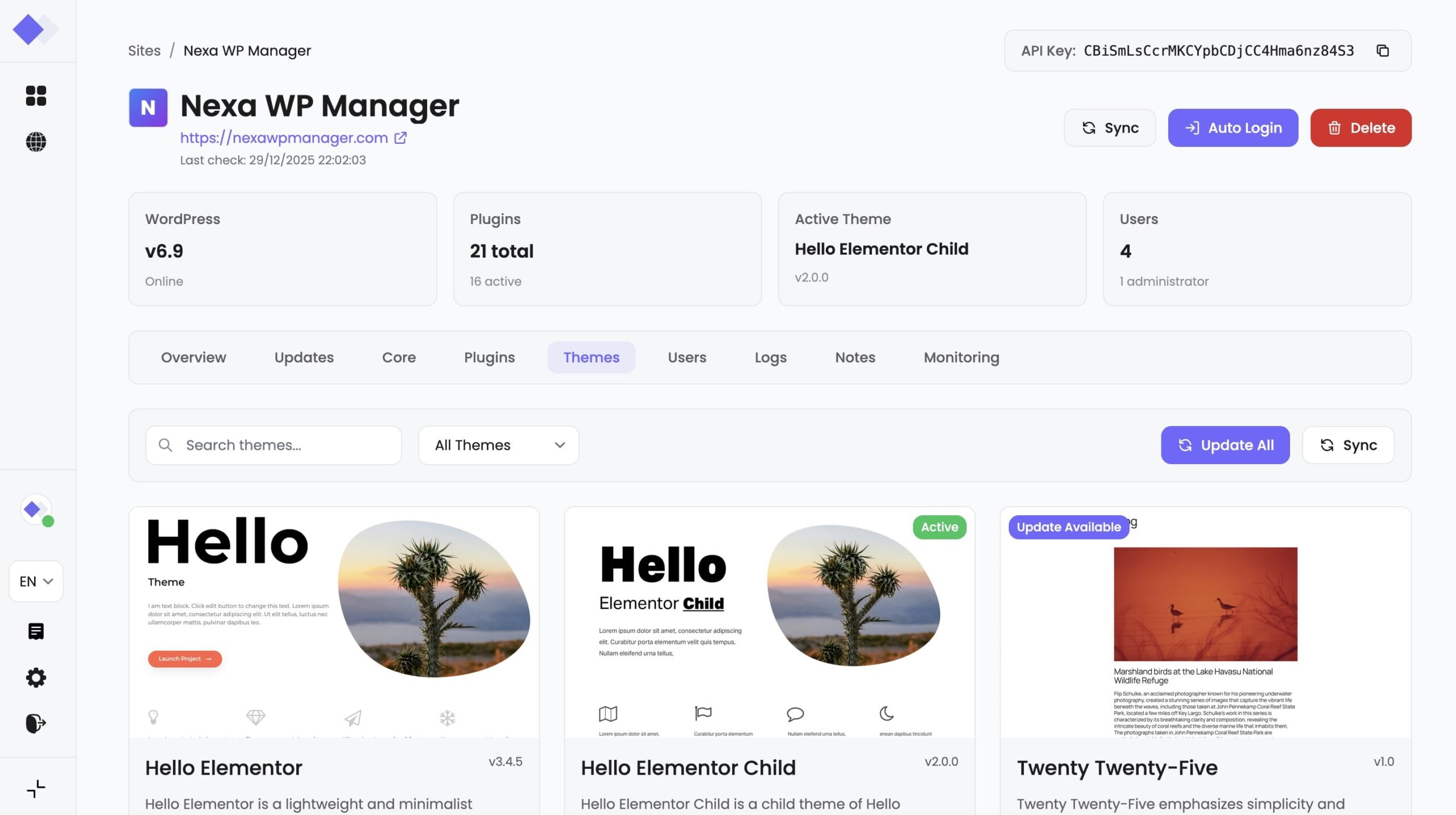
You can activate a theme by toggling the switch next to the theme name. Activating a theme will apply its design and settings to your site, replacing the current theme. Only one theme can be active at a time, and activating a new theme will deactivate the current one.
Update themes
Themes can be updated by clicking the “Update” button next to the theme that has an available update. Keeping your themes up-to-date ensures that you have the latest features, improvements, and security patches.
WordPress core management
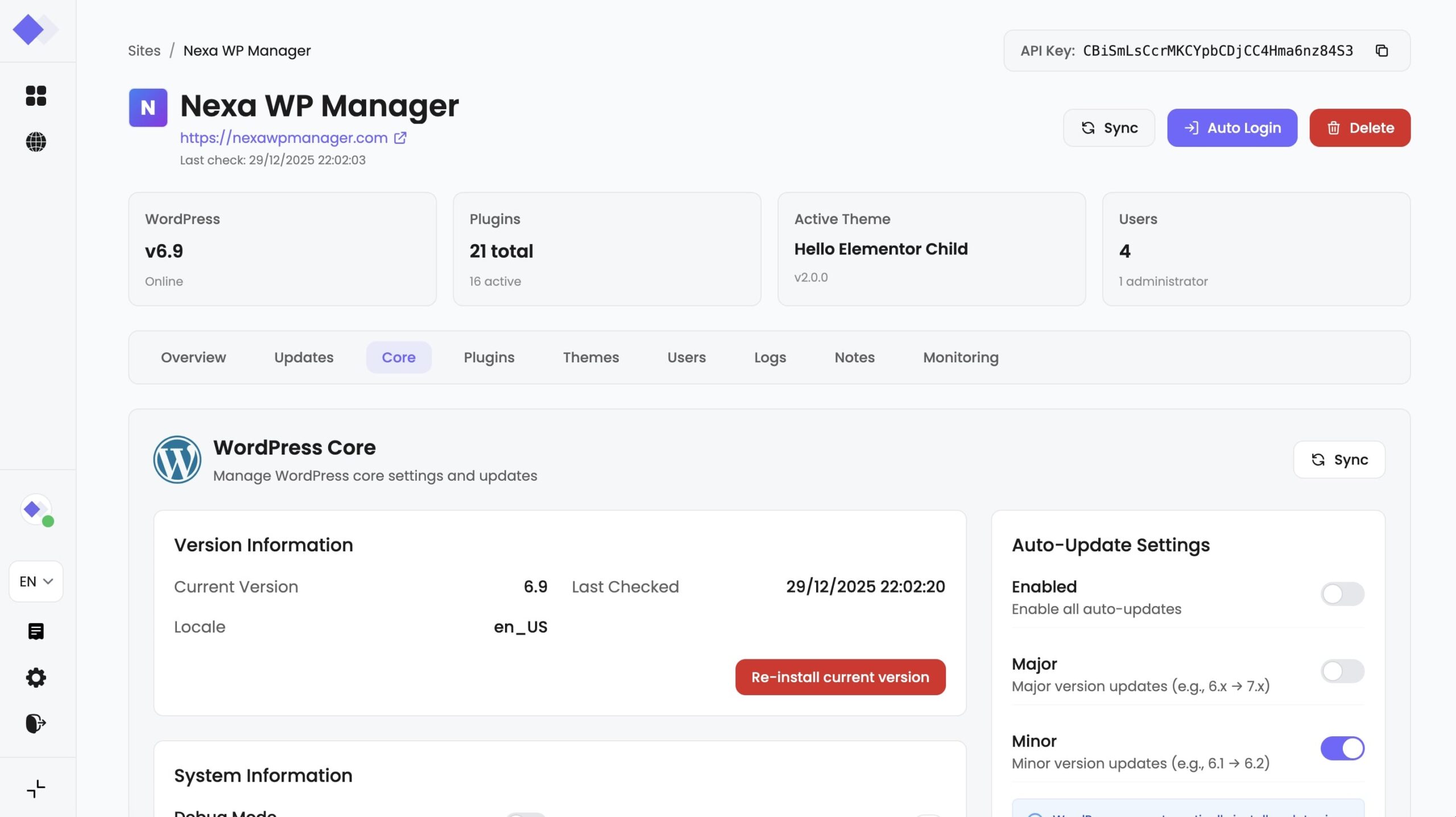
Enable or disable auto-updates for WordPress core
You can choose to enable or disable automatic updates for the WordPress core by toggling the switch. Enabling this feature ensures that your WordPress installation is always up-to-date with the latest security patches and improvements.
Update WordPress core
You can manually update the WordPress core by clicking the “Update” button. This will apply the latest version of WordPress to your site, ensuring you have the newest features and security enhancements. Note that updating the core may take several minutes.
User management
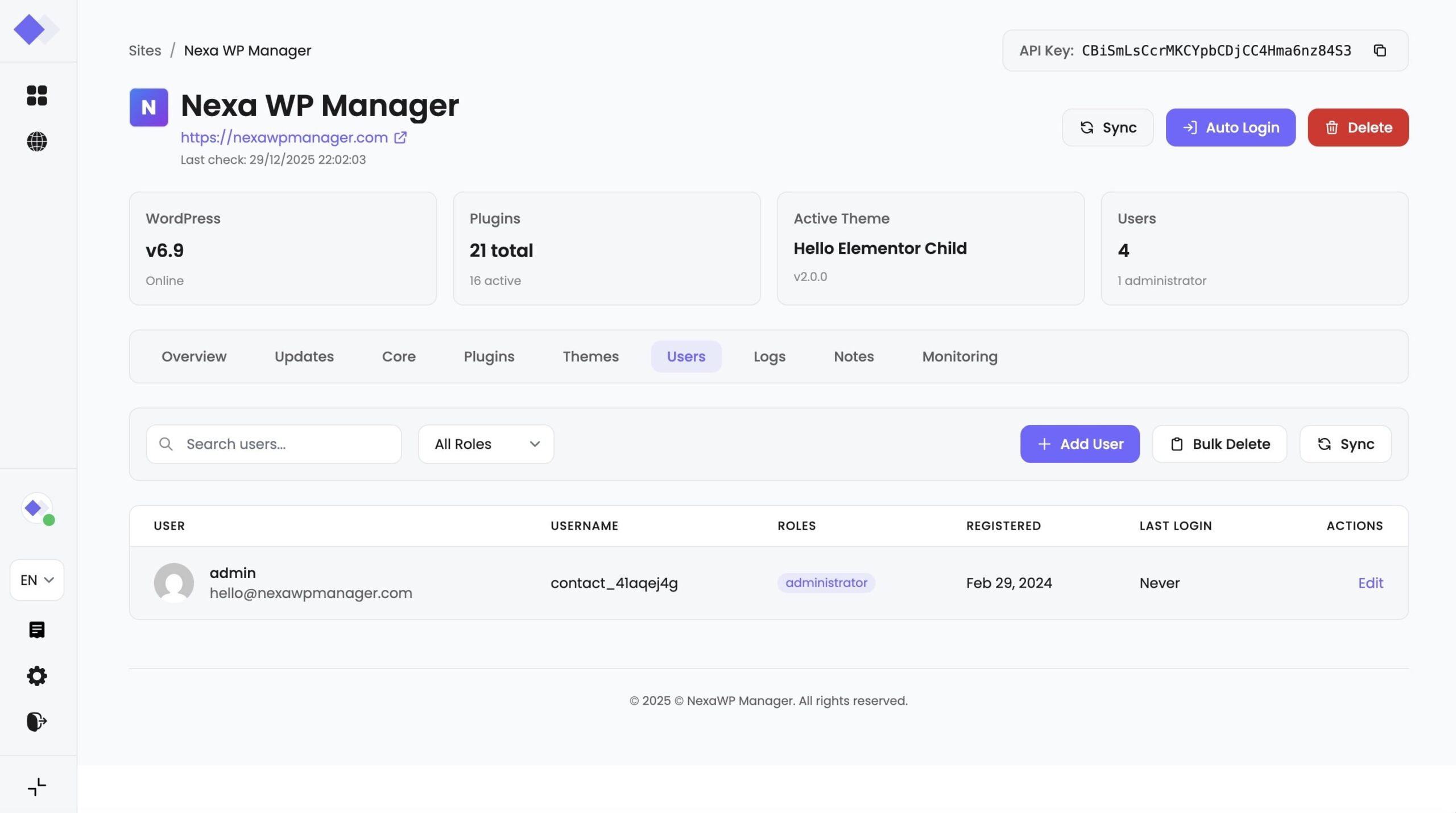
Search for users
You can search for users by entering a username or email address in the search bar. This feature helps you quickly find specific users among the list of all registered users on your site.
Paginate user list
Adjust the number of users displayed per page using the dropdown menu. This allows you to manage and navigate through large lists of users more efficiently.
Delete users
Users can be deleted by clicking the delete icon next to their name. This will permanently remove the user from your site. Note that this action is irreversible, so ensure you want to delete the user before proceeding.
Note management
Add notes
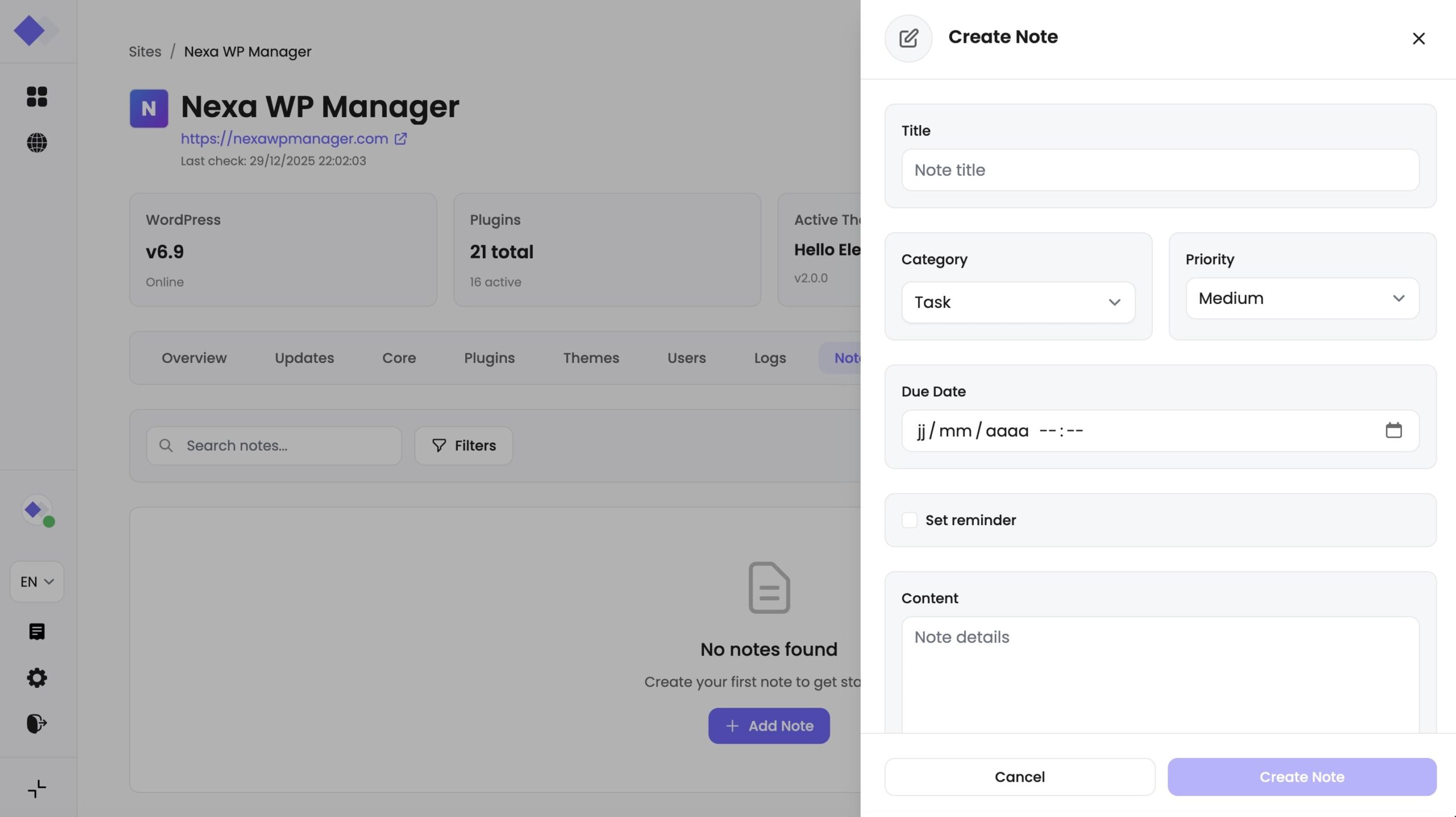
You can add notes related to your site by filling in the note title and content, and optionally setting a date and time for reminders. Notes can help you keep track of important events, updates, and tasks.
Edit notes
Edit existing notes by clicking the edit icon next to the note. You can update the title, content, and associated dates and times. Editing notes allows you to keep your records up-to-date and accurate.
Delete notes
Delete notes by clicking the delete icon next to the note. This will permanently remove the note from your site. Ensure that you really want to delete a note, as this action cannot be undone.
 English
  Français
  Deutsch