Signing up on the platform
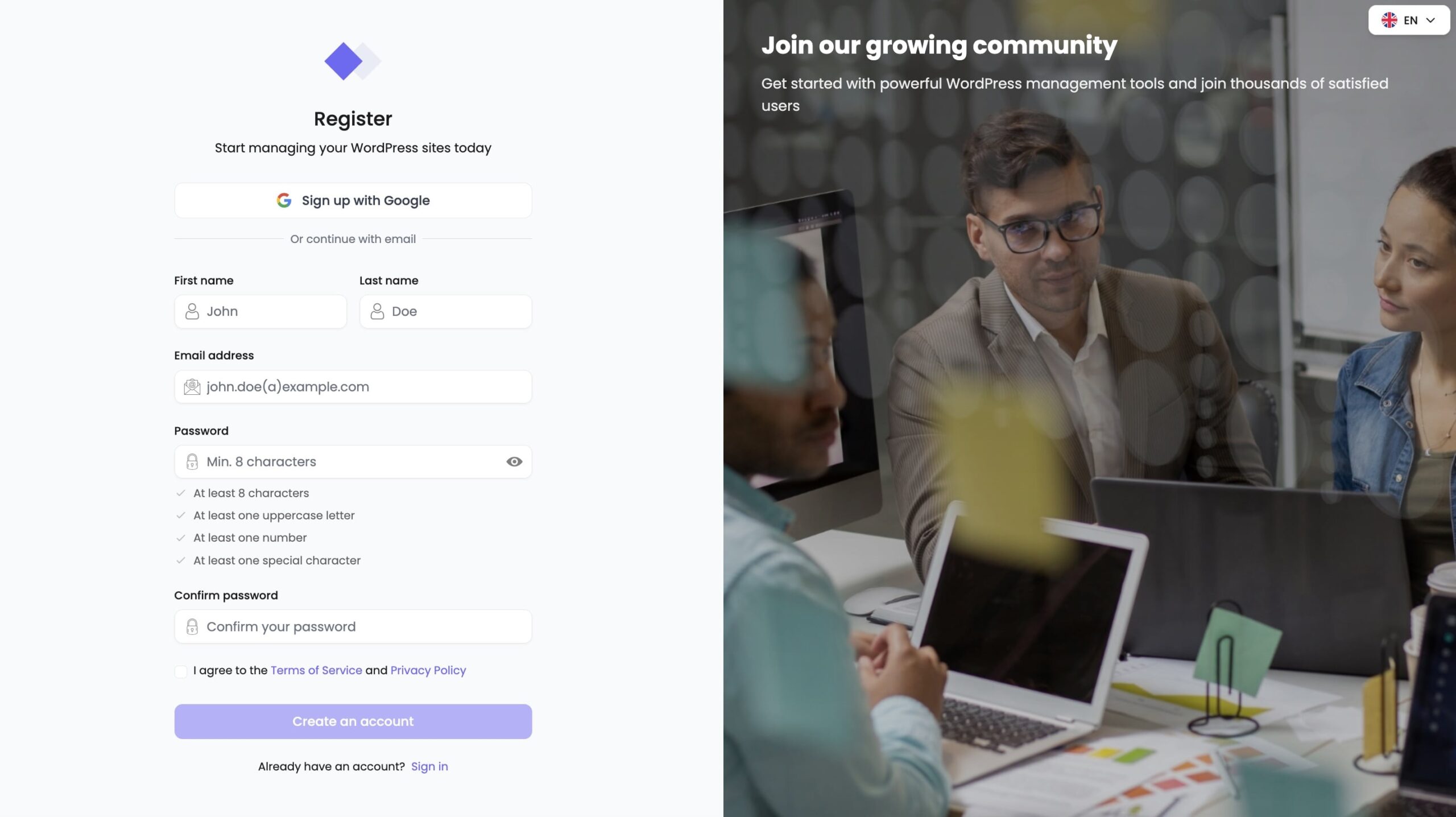
To get started with NexaWP Manager, click on the “Star free trial” button.
Fill out the registration form by providing your personal information, including your name, email address, and a secure password. Once the form is submitted, you will receive a confirmation email to activate your account. Click on the confirmation link in the email to finalize your registration. Once your account is activated, you can log in to your dashboard and start exploring the features of NexaWP Manager.
7-day trial
Once you have registered, you will automatically benefit from a 7-day free trial period. This trial period allows you to discover all the features of NexaWP Manager without any financial commitment.
You can add sites, configure monitoring parameters and explore the centralised management tools. During this period, you will also receive customer support to answer any questions you may have and help you get the most out of NexaWP Manager.
At the end of the trial period, monthly payment will begin.
How do I add a site to NexaWP Manager?
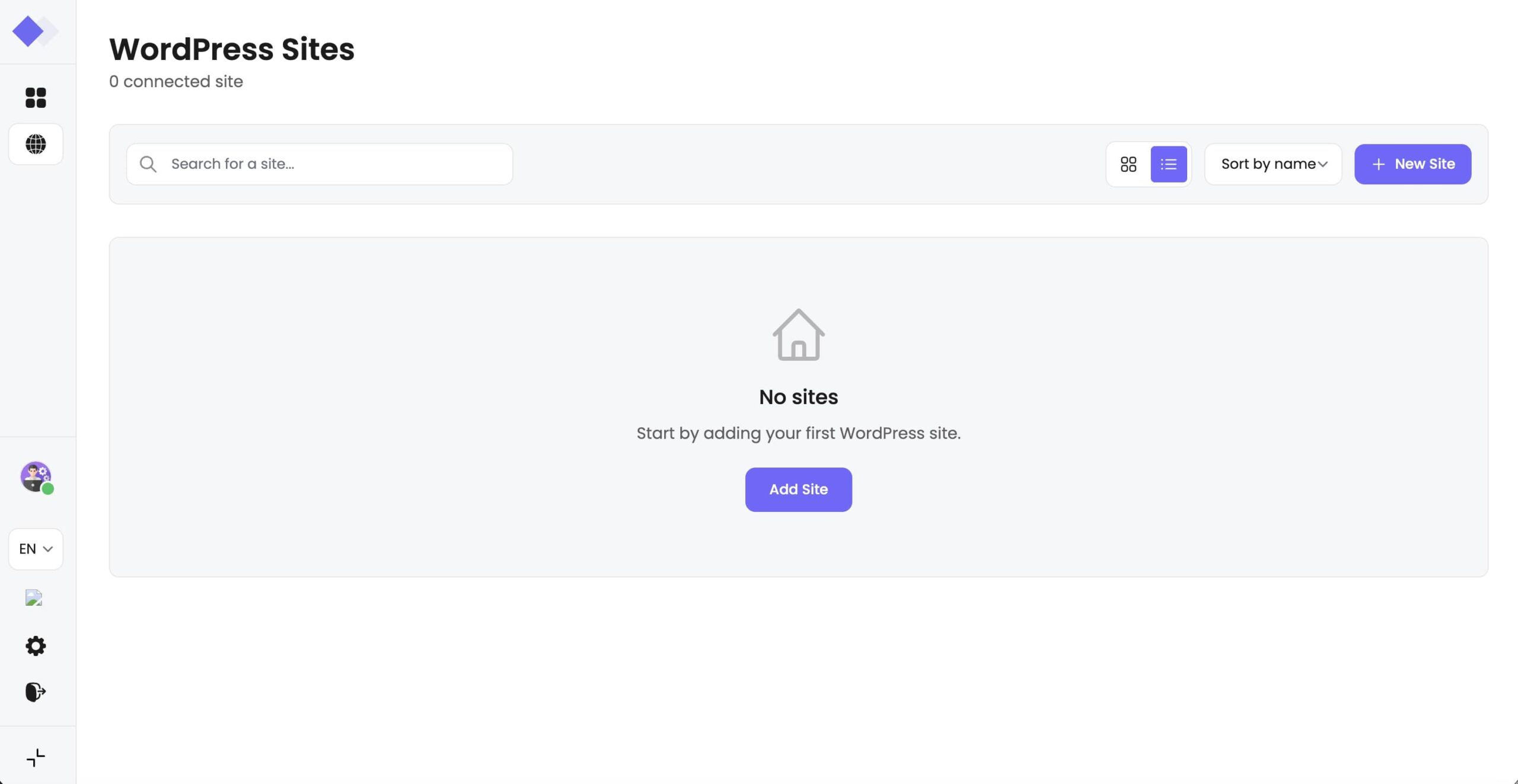
To add a site to your NexaWP Manager dashboard, you must download and install the NexaWP Connector plugin. This plugin is available for download here.
Download the plugin and install it on the site you wish to add to your NexaWP Manager dashboard.
I've installed NexaWP Connector, what should I do now?
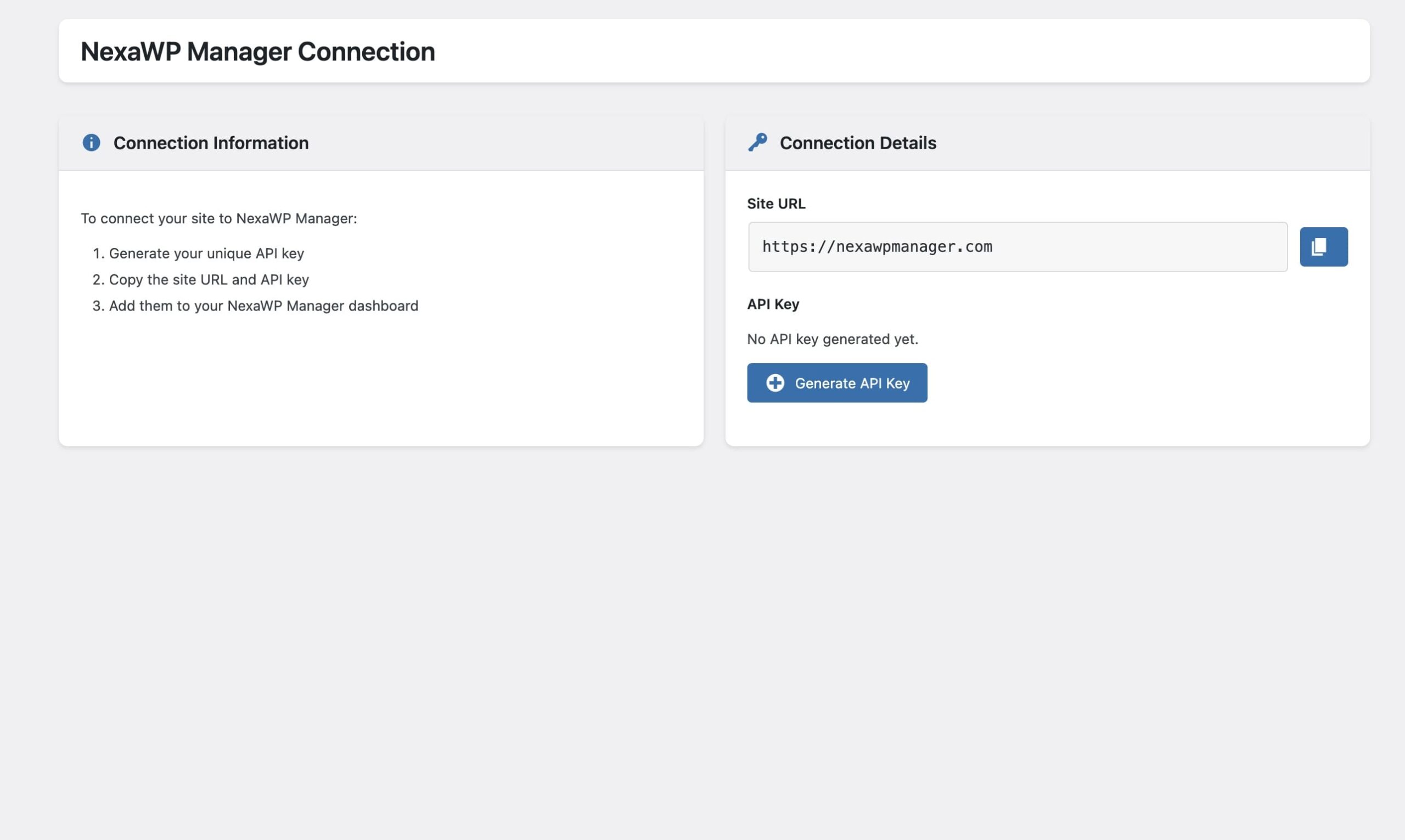
Once the NexaWP Connector module has been installed on the WordPress site you want to add, you need to copy the site URL and generate the API key in the module settings. Then go back to the NexaWP Manager settings and paste this information into the appropriate fields. Once the information is saved, the site will be added to your NexaWP Manager dashboard and you can start monitoring and managing it.
Then repeat the operation as many times as necessary to add as many sites as you like.
 English
  Français
  Deutsch